
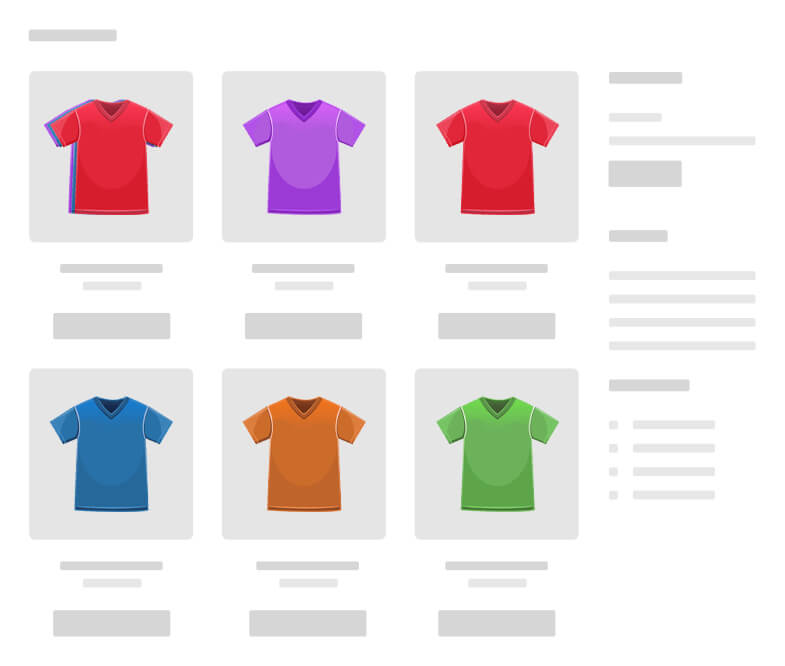
By default, WooCommerce lists a variable product once and hides every size, colour and style inside a drop-down on the product page. If you sell a t-shirt in 6 colours and 5 sizes, shoppers browsing your shop see one product, not 30. In this guide you will learn how to show WooCommerce variations as single products on your shop, category, tag and search pages, when it makes sense, and how to set it up in a few minutes without code.
What Does “Show Variations as Single Products” Mean?
A variable product in WooCommerce is one parent product with several variations, such as T-Shirt – Red – L or T-Shirt – Blue – M. Showing variations as single products means each variation gets its own listing in the catalogue, with its own image, title, price and add to cart button, while still belonging to the same parent product.
Why Show Each Variation as Its Own Product?
- More visible catalogue: shoppers see every colour or size while browsing, instead of one generic listing.
- Better on-site search: a search for “red hoodie” can show the red variation directly.
- Smarter filtering: when someone filters by colour or size, the matching variation appears, not just the parent product.
- Fewer clicks to buy: customers can add a specific variation to the cart straight from the shop page.
This is especially useful for fashion and apparel, hardware and parts with different dimensions, and food or beauty products sold in several pack sizes.
Default WooCommerce vs Variations as Single Products
| Default WooCommerce | Variations shown as single products | |
|---|---|---|
| Shop page | One listing per variable product | One listing per variation |
| Search results | Parent product only | Matching variation shown |
| Attribute filters | Parent product shown | Matching variation shown |
| Add to cart | Choose options on the product page | Add from the shop page |
| Product images | One image for all options | Each variation shows its own image |
How to Show WooCommerce Variations as Single Products (Step by Step)
WooCommerce has no built-in setting for this, so you need a plugin. The steps below use Variations as Single Product for WooCommerce, which is rated 4.8 out of 5 by store owners and used by more than 1,000 stores.
Step 1: Install and activate the plugin
Install the plugin from the Plugins menu in WordPress and activate it. Variations start showing as single products on your shop page right away.
Step 2: Choose where variations appear
Open the plugin settings and turn variation listings on or off for the Shop, Category, Tag and Search pages. You can also show them in the [products] shortcode.
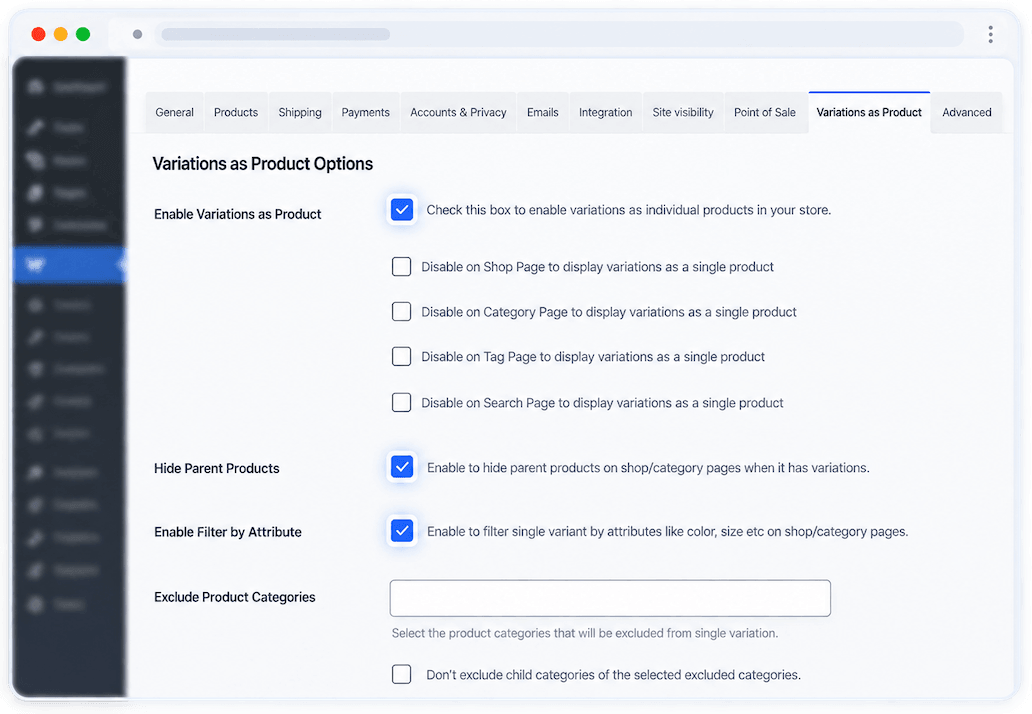
Step 3: Hide parent products if you want
If every variation is listed, the parent variable product can feel like a duplicate. Hide parent products globally, or only for specific products from the product edit screen.
Step 4: Exclude the variations you do not need
Keep your catalogue tidy by excluding variations by attribute (for example, hide every “XS” size), by category or tag, by product, or one variation at a time.
Step 5: Give variations clear titles
Use a title pattern such as {title} in {attributes} so a variation shows as “Classic Tee in Red, Large”, or write a custom title for any single variation.
Advanced Options Worth Knowing
- Place variations next to their parent (Pro): keep related items together instead of adding variations to the end of the list.
- Sorting: variations are included when sorting by price, rating, popularity or date (Pro).
- Stock control: hide out-of-stock or backorder variations so shoppers only see what they can buy (Pro).
- Related, upsell and cross-sell products: show variations in these sections too (Pro).
- Compatibility: works with WooCommerce HPOS, WPML, Polylang, Elementor and Bricks Builder.
Best Practices
- Use a distinct image for each variation, so the listings look different at a glance.
- Hide parent products when every variation is listed, to avoid repeated listings.
- Exclude rarely sold variations to keep category pages short and focused.
- Use descriptive variation titles that include the attributes shoppers search for.
- Check your filters after setup to make sure each colour or size returns the right variation.
Frequently Asked Questions
Can WooCommerce show variations as separate products by default?
No. By default WooCommerce shows one listing per variable product, and customers choose a variation from a drop-down on the product page. You need a plugin or custom code to list variations individually.
Will showing variations as single products create duplicate content?
The variations appear as extra listings on shop, category, tag and search pages, but each one links to its parent product page, so you do not create new product pages that compete with each other.
Can I hide the parent variable product?
Yes. With Variations as Single Product you can hide parent variable products globally or for specific products.
Can I show only some variations?
Yes. You can exclude variations by attribute, by category or tag, by product, or one variation at a time.
Do single variations work with product filters?
Yes. Variations appear in attribute filter results, such as colour and size, and inherit any other attributes from the parent product.
Is it compatible with WooCommerce HPOS?
Yes. Variations as Single Product is compatible with WooCommerce High-Performance Order Storage (HPOS), WPML and Polylang.
Conclusion
Showing WooCommerce variations as single products makes your full range visible, improves search and filtering, and shortens the path to checkout. With Variations as Single Product for WooCommerce you can set it up in minutes and control exactly which variations appear. HeliumWP is a WordPress plugin company building focused WooCommerce plugins. Explore all our plugins.