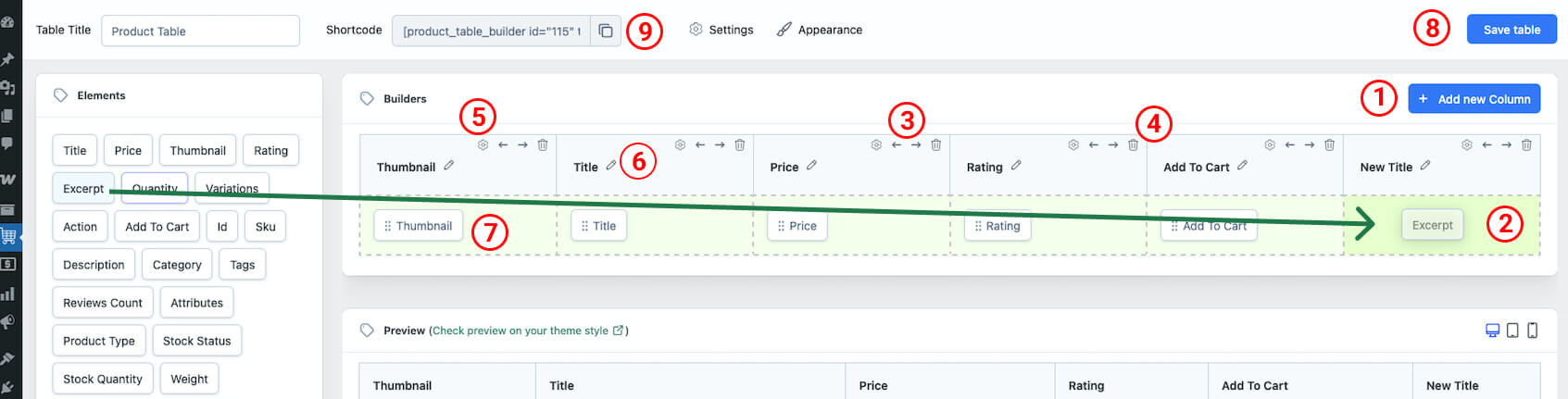
- In the Builders section, click “Add New Column” to create a new column.
- Drag and drop elements from the Elements panel to the Builder column. You can add multiple elements to the same column.
- Move Column: Use the left or right arrow icons beside the bin icon to move the column left or right.
- Delete Column: Click the bin icon in the top right corner of each column to delete it.
- Customize Column: Click the gear icon beside the left arrow icon to customize the column. For more details, refer to the Column Settings section.
- Column Title: Click the pen icon to edit the column title.
- Click on each element within your builder to customize it. For more details, refer to the Element Settings section.
- Save the table
- ShortCode: Copy the generated shortcode from the top bar. Paste the shortcode into any page, post, or widget area that supports shortcodes.
Example ShortCode:
[product_table_builder id="115" title="Product Table"]

Your table is now visible on the page where you added the shortcode.